Decide what the listing image must show
The goal of a product cutout is not simply to make every background pixel disappear. It is to leave a trustworthy view of the item: the right shape, an intact label, recognizable texture, and believable color. Decide whether this is a main catalog image or a secondary lifestyle image before editing. They may have different background and framing requirements.
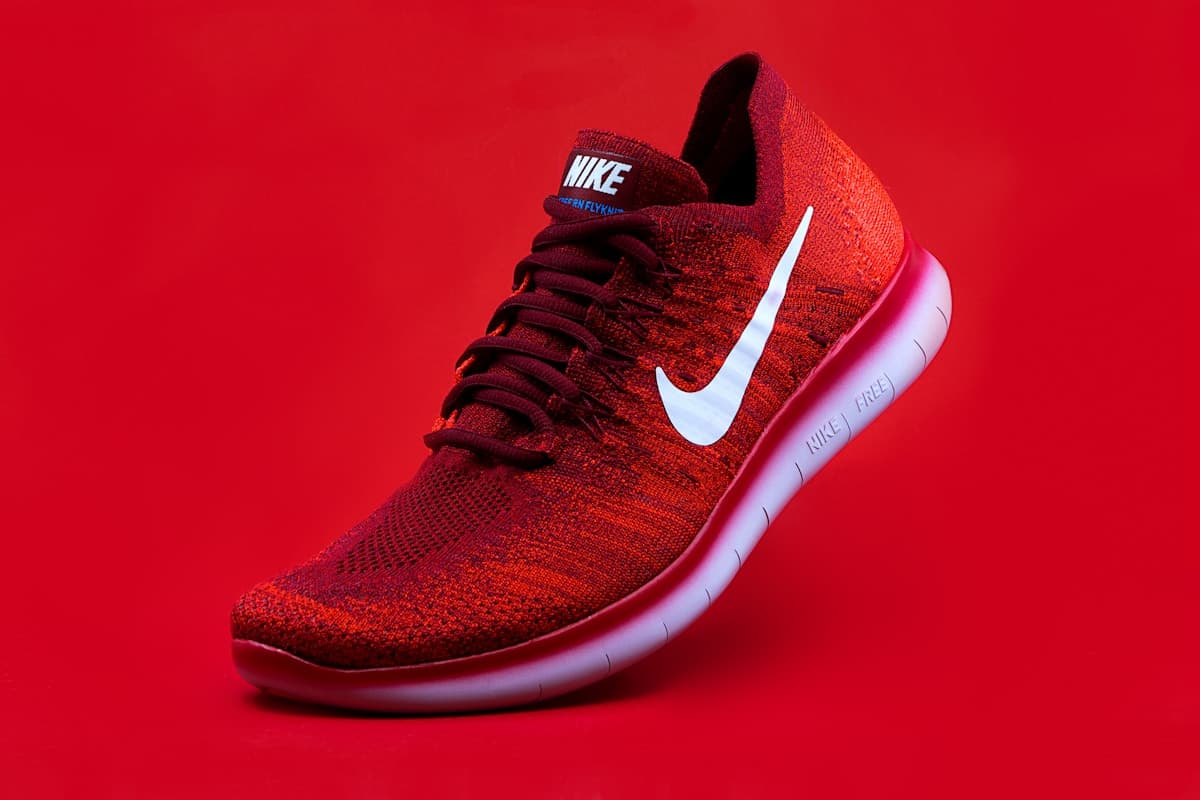
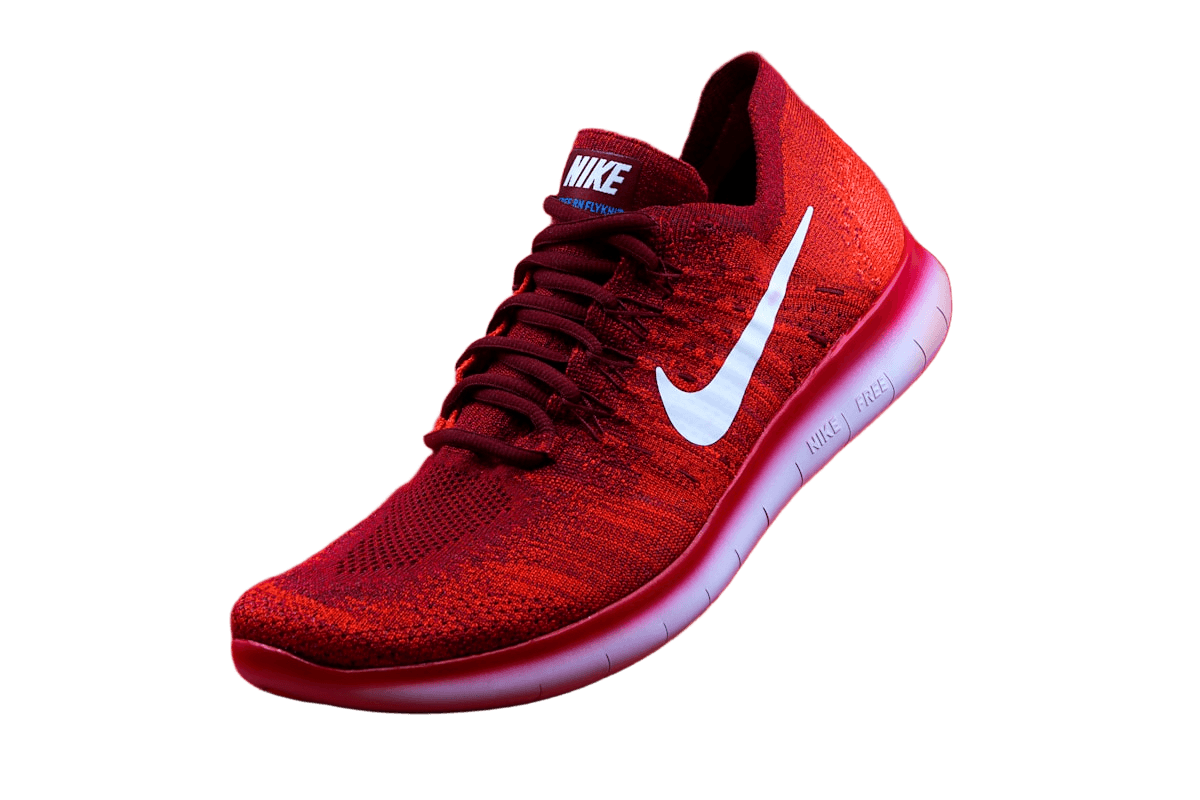
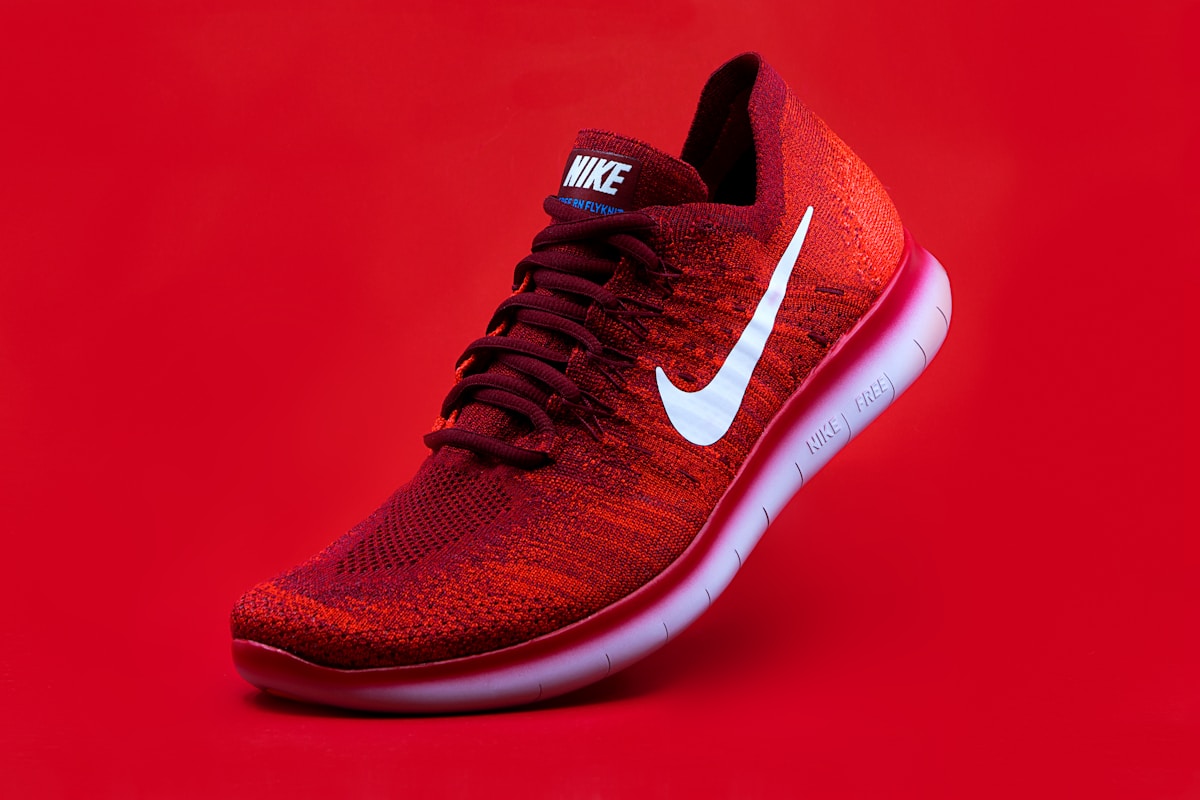
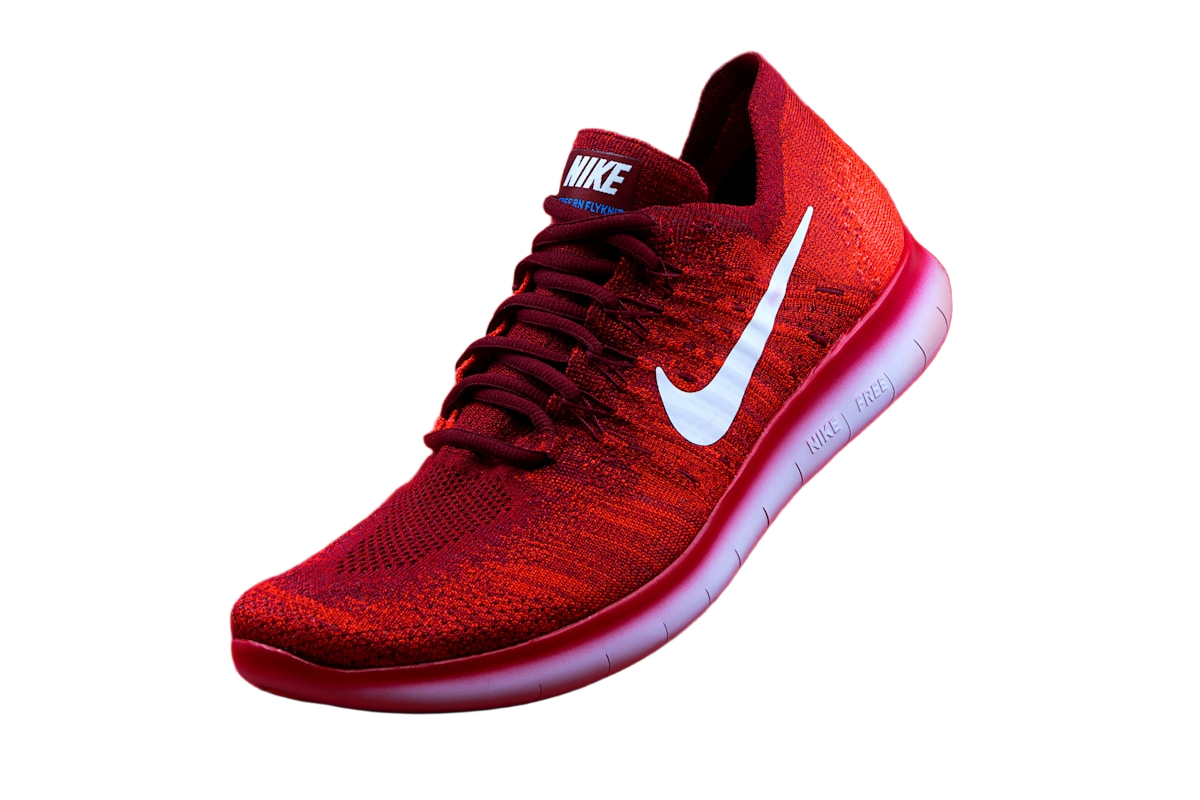
In the shoe example, the white logo and sole are useful reference points, but the red upper sits against a similarly colored set. Inspect the toe outline independently from the sole. The dark opening at the top belongs to the shoe; deleting it because it looks like an empty space would change the product. A background remover does not know which product details your customer needs to evaluate.
Start with a clear product photo
Use soft, even light and leave space around the entire product. A sharply focused outline is easier to separate than a blurred one. Avoid placing a light product against a similarly light background when possible.
Background removal does not repair an out-of-focus photo, reconstruct hidden product details, or correct inaccurate colors. For glass, mesh, reflective metal, or translucent packaging, plan to inspect the result closely.
Remove the background deliberately
Open the editor and select a JPEG, PNG, or WebP image up to 25 MB and 40 megapixels. Removal starts as soon as the image opens, so confirm afterwards that the preview shows the right file.
Images above 16 megapixels are scaled down to 16 megapixels in your browser before editing, and the download uses that working size. Keep your original file so you can return to it later.
Inspect the edges, not just the thumbnail
Use Compare and move the divider across the product. Zoom in to check straps, laces, handles, holes, and other fine details. Switch between a light and dark background to make leftover fringes easier to see.
Use Erase to remove leftover background and Restore area to bring back missing parts of the original photo. Use a small brush near the outline: restoring a region can also bring back its original background. If the source detail is blurred or hidden, try a sharper photo with better contrast.
Choose a background for the destination
A white background often suits product catalogs, while a consistent brand color can work for social posts. Marketplace rules differ: check the current requirements for background, framing, shadows, and image dimensions before publishing.
Choose a preset or custom color, then download the PNG. The chosen color is included in the file. Keep a separate transparent export when you also need to place the product in another design.
Keep a consistent set
Choose a consistent canvas and subject scale in your destination editor. As a layout example, a 1200-pixel-wide canvas with 120 pixels of space on each side leaves 960 pixels for the product. This is a spacing calculation, not a marketplace rule. Apply the same convention to the next item instead of making every cutout fill whatever space happens to remain.
Original size preserves the working canvas; a size preset frames the detected subject on a new canvas. Use the same preset and padding as a starting point, then compare each item: an included prop or leftover background patch changes the detected bounds and therefore the scale. You can add up to 10 images at once, but Download all uses original framing rather than each image's size preset. Download individually when you need preset-sized files. Automatic shadows are not available.
A final product-photo inspection
Inspect the actual downloaded file, then view it in the listing layout. Fix defects that alter the item's identity before spending time on tiny cosmetic imperfections that are invisible at its final size.
- Compare the product silhouette with the original, including the sole, straps, handles, and openings. Preserve real interior surfaces, not just the outer perimeter.
- Check readable text, seams, and texture. Removal should not quietly erase a pale label or turn translucent packaging into a solid shape.
- Check the contact area. Removing the original floor shadow can make the item appear suspended; adding a new shadow elsewhere should be a deliberate design choice.
- Compare color and framing across the full set. A matching background does not compensate for different lighting or camera angles.