Separate the subject first
Choose the image you want to edit before uploading: removal starts automatically when you add it. Background color replacement uses the resulting cutout; it does not recolor the subject itself.
You can explore the color controls on the sample before uploading. Download becomes available after your own image has been processed.
Pick a color with a purpose
White keeps the focus on product details. Charcoal can give light subjects more contrast. Softer colors can complement a portrait or create consistency across a series of posts.
Use one of the preset swatches or open the custom color picker. When matching a brand color, enter the exact value where your browser's color picker supports it. Avoid picking a background so close to the subject that its outline becomes hard to see.
Check the entire outline
Select Cutout to see the full result, or Compare to inspect it against the original. Zoom in around hair, fabric, and narrow gaps. Both very dark and very light backgrounds can expose edge artifacts that were hidden by the original scene.
A new background cannot fix every lighting mismatch. A subject photographed under strong colored light may retain that color on its edges. A better-lit source photo can produce a more natural result.
Separate background color from reflected light
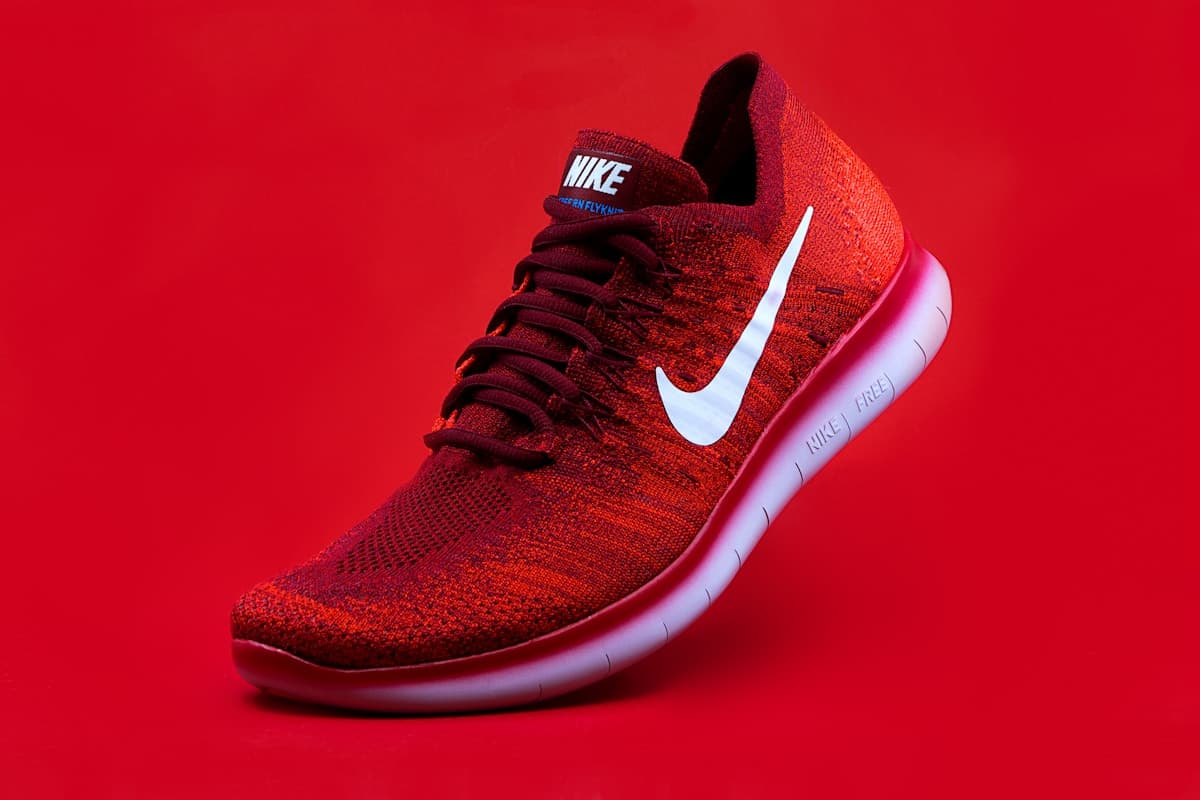
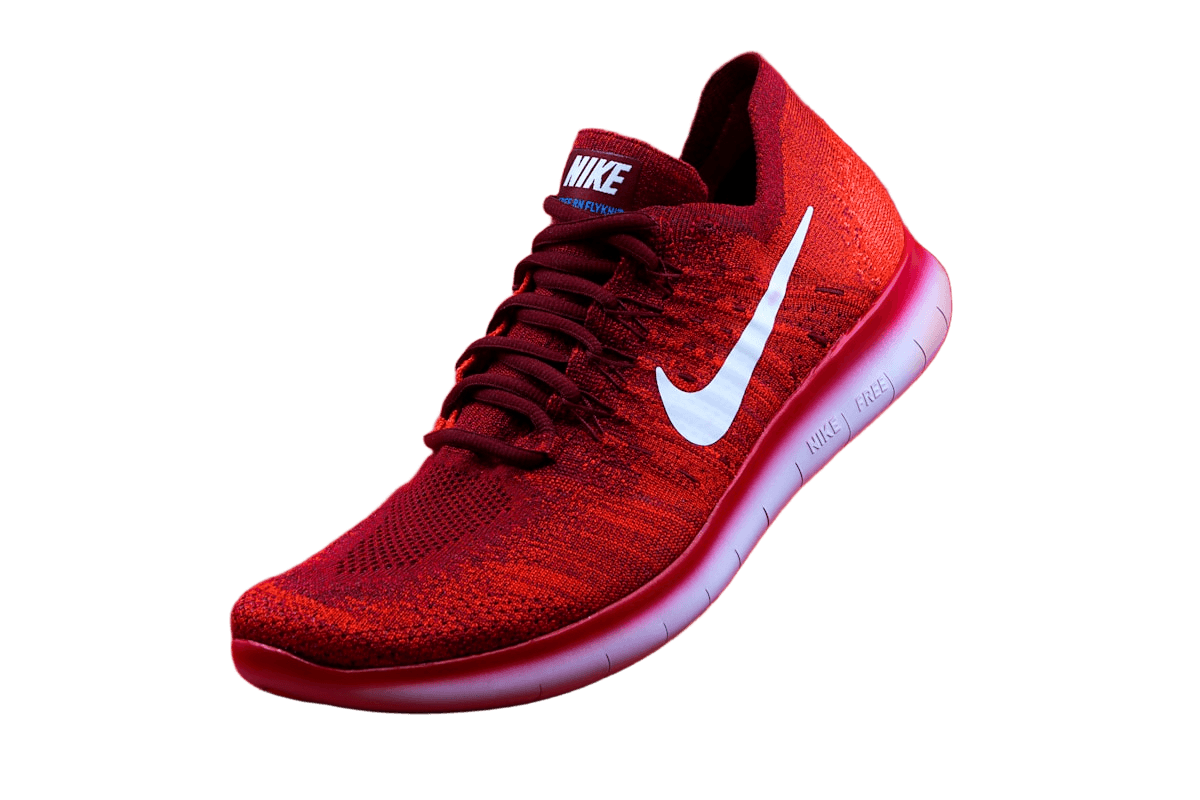
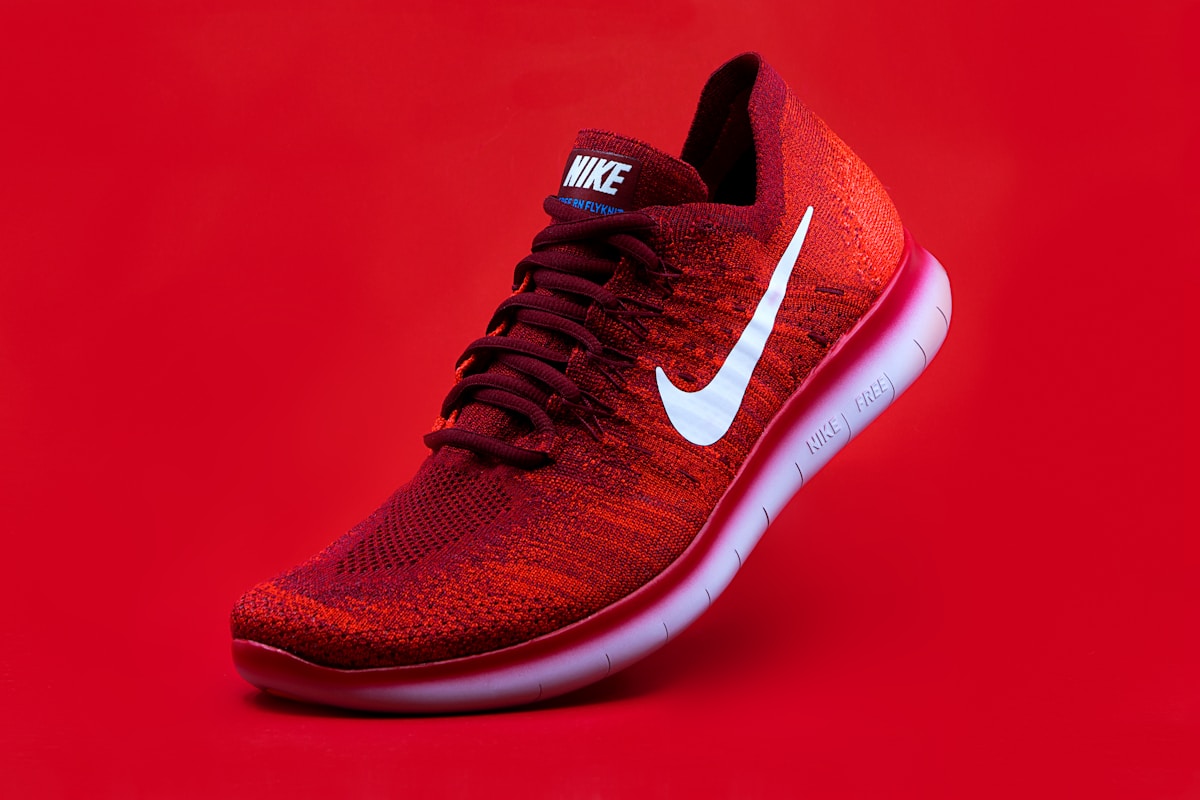
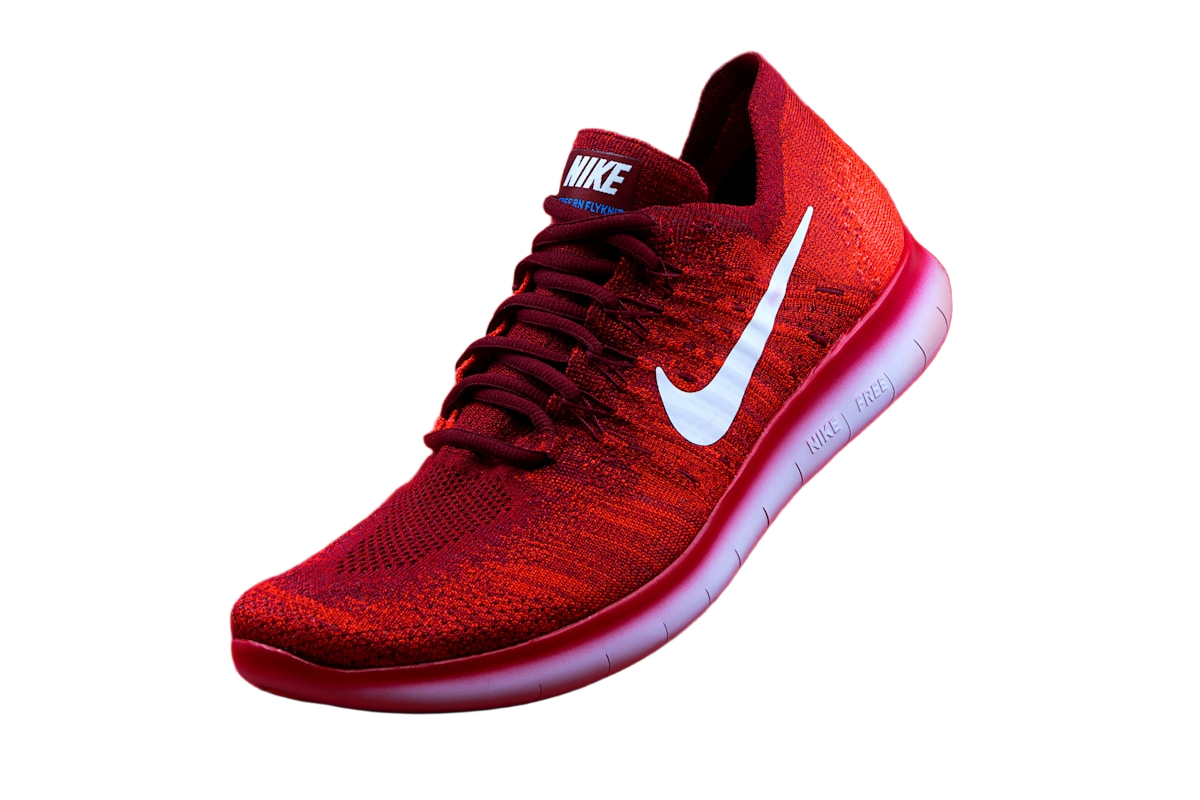
In the sample, the pale sole picks up pink tones from the red scene. Placing the cutout on white does not neutralize those tones: they are part of the photographed shoe, not transparent space. If the edge looks red, compare the same spot with the original before erasing it. Removing real sole pixels to eliminate a color cast makes the product narrower.
This is why some background replacements look pasted in even when the outline is accurate. The original light still has a direction, color, and softness. For a neutral catalog result, start with neutral lighting; for an existing photo, choose a background that works with its illumination. Cutout Lab replaces a background color but does not provide selective color correction or relighting.
Compare two destinations before committing
Export a white version and a dark version from the same refined cutout. Compare them at the size where the image will be used. Check light details against white, dark details against the dark background, and partially transparent edges against both. A result that works for one destination may need further masking for the other.
When matching a brand, use its actual color value rather than choosing by eye from a compressed screenshot. The same value can still look different across displays. For a website, judge the exported image beside the real page background; for print, use a print-aware workflow outside this editor instead of assuming a browser preview is a color proof.
Download the color you see
Select Download after choosing a color. The exported file includes that solid background at the image's working dimensions. Compositing happens in your browser, without another background-removal request.
Switch back to Transparent if you want a reusable cutout instead. Besides solid colors, you can choose a gradient, blur the original background, or upload your own background photo. Automatic shadows are not currently supported.
Check your final placement
Open the download in the app or page where you intend to use it. Confirm that the subject remains readable at thumbnail size and that the image fits the destination's aspect ratio. Size presets provide fixed canvases, not a check of a platform's current requirements. Choose a preset deliberately and inspect any cropping in the destination preview.