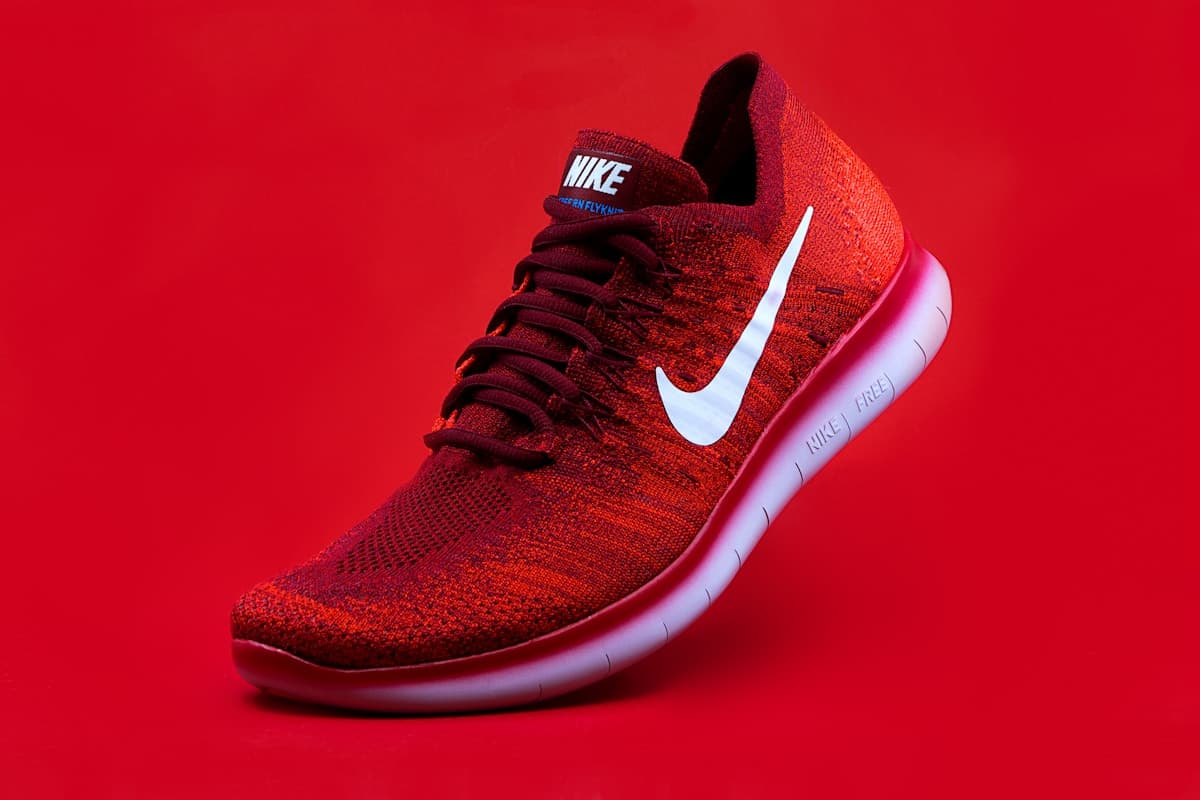
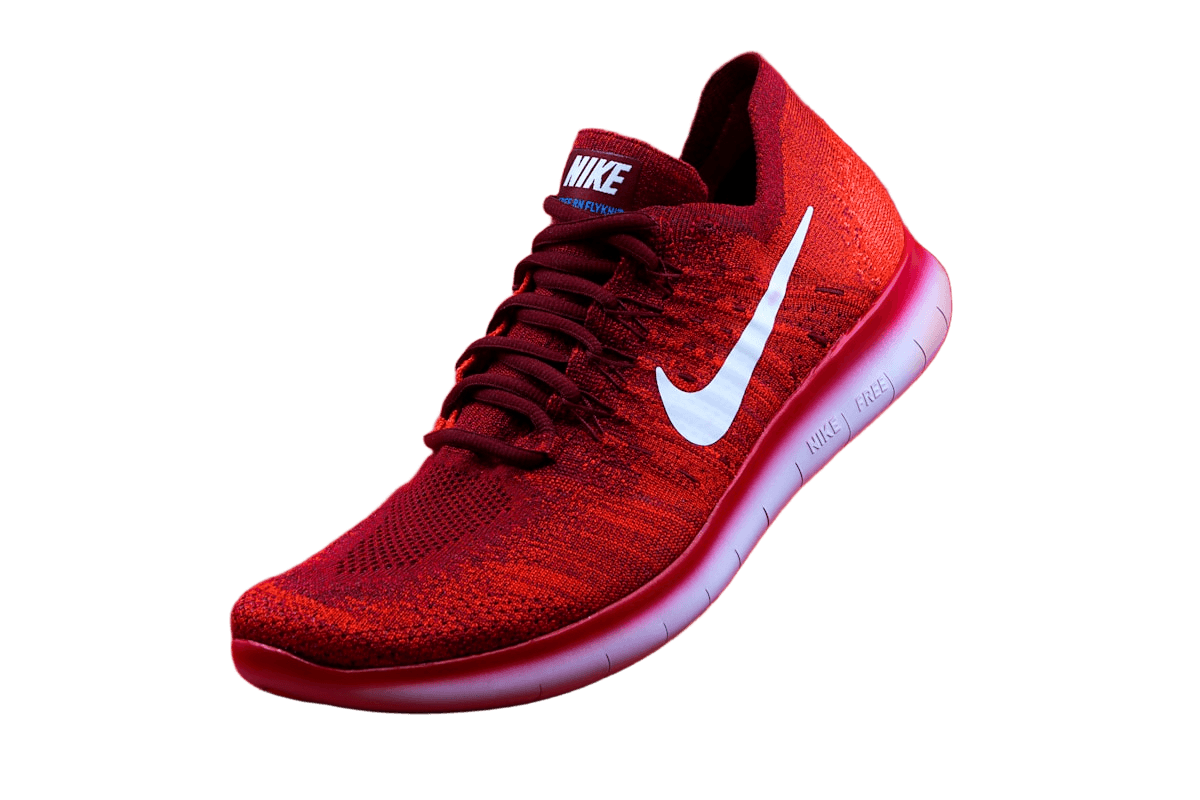
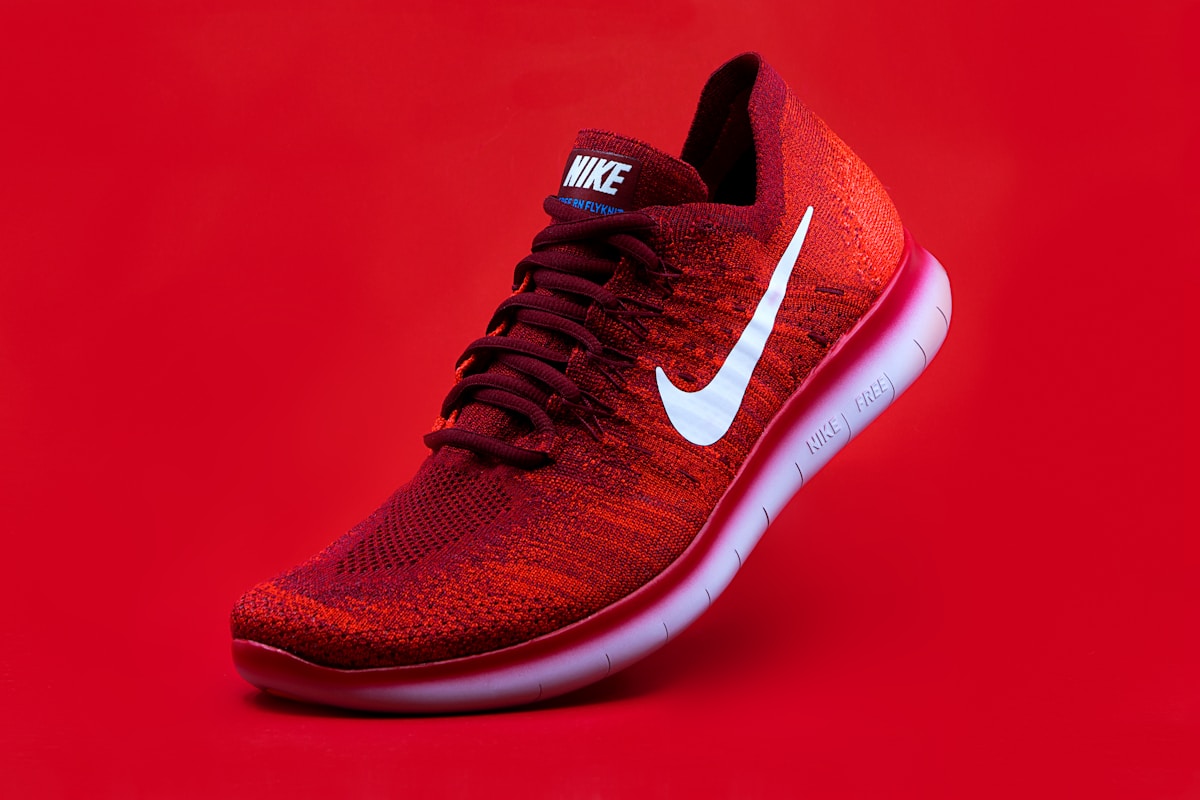
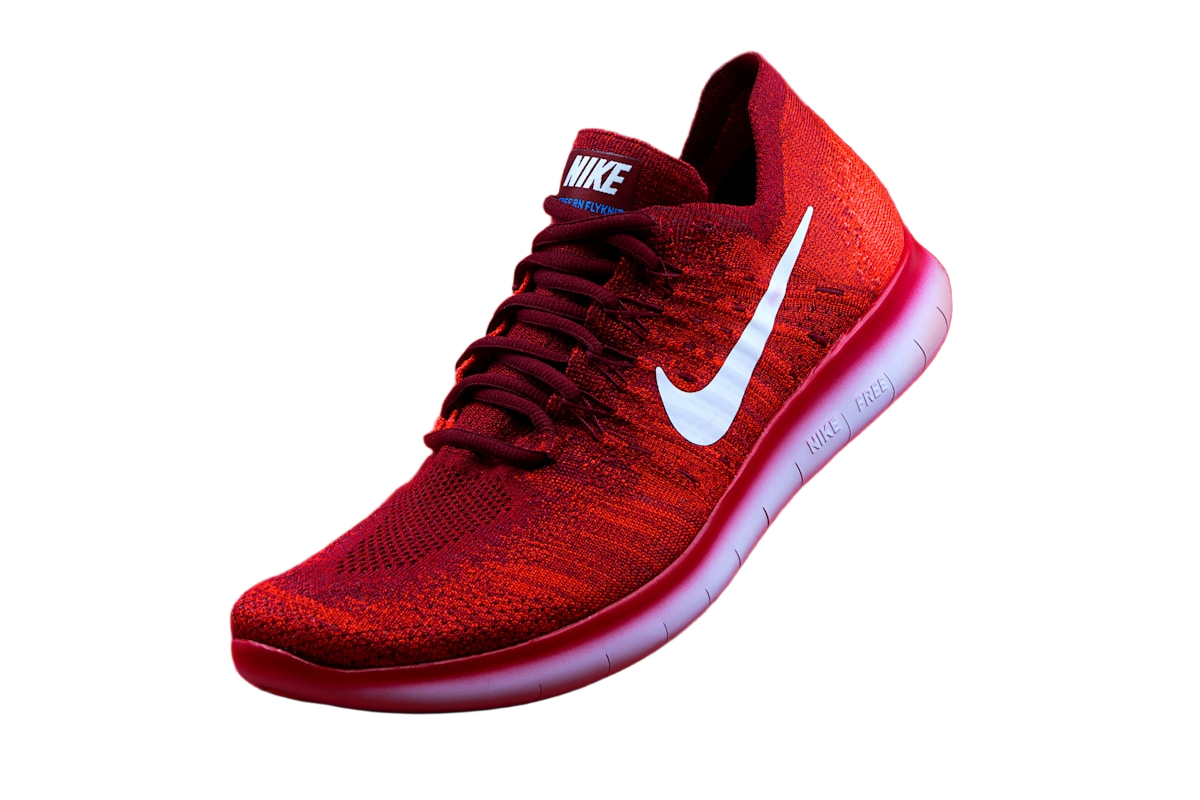
Why some composites look pasted on
Your eye notices when a subject and its background were photographed in different conditions, even if you cannot say why. The most common giveaways are light coming from different directions, different color temperature (warm indoor light on a subject placed in a cool outdoor scene), mismatched sharpness, and a camera angle that does not fit the scene.
A compatible background reduces these conflicts, but does not guarantee a natural composite. Cutout Lab does not relight the subject, change its viewing angle, or generate contact shadows. If the two photos need those corrections, use a composition editor with the appropriate tools or choose a different source.
Choose a background that matches
Use these checks to reject obvious mismatches before uploading a background. They are a starting point; the final placement still needs inspection.
- Light direction: compare visible highlights and shadows in both images. Several lights or reflections can make the direction ambiguous; do not assume every subject has one simple left-to-right shadow.
- Color: compare the photographed subject with the new scene. A warm color cast may conflict with a cooler setting; selecting a new background does not correct that cast.
- Camera height and angle: a product photographed from above does not sit on a table photographed from eye level.
- Sharpness and scale: check whether the subject's detail and apparent size fit the scene. A soft background can reduce competing detail but cannot fix an impossible perspective or scale.
Steps in Cutout Lab
Your background photo stays in your browser; it is only used to compose the download.
- Upload the subject photo and let removal finish.
- Fix any edge problems with Erase and Restore area before choosing a background. Leftovers are harder to judge over a busy photo.
- In Background, select the photo button and choose your background image. It is scaled and center-cropped to cover the frame, so inspect which parts are lost when you change aspect ratio.
- Use a size preset and Padding to set subject scale. Position sliders adjust placement where the fitted subject has room to move; they are not free perspective or rotation tools. Use a different editor if the scene needs those changes.
- Download as JPG for sharing or PNG for further editing.
Worked check: placing the shoe on a shelf
Suppose a replacement photo shows a shelf from above while the shoe is seen mainly from the side. Moving the shoe downward may align its sole with the shelf, but it will not reveal the top surfaces a higher camera angle should show. Padding changes scale, not perspective. If the mismatch remains, use a background photographed from a compatible angle rather than trying to solve it with position alone.
Check the download at its intended display size for a second problem: the shelf may be center-cropped differently in a portrait preset than in Original size. Verify that the support surface still sits beneath the product and that the image does not imply an incorrect product size. Use only background photos you have permission to reuse.
Shadows and grounding
Removal can discard or partly retain the original shadow; inspect it before composing. A person or product without a believable contact area can look suspended above a floor or table. Cutout Lab does not add shadows, so use a layout editor when a surface needs one, or choose a composition without a visible contact surface.
For product shots, a background that shows a surface directly beneath the item is the hardest to fake. A plain wall or a blurred scene with no visible floor is far more forgiving.